


TP-Link WiFi Extender Setup: Easy Steps to Boost and Expand Your Wireless Network Coverage
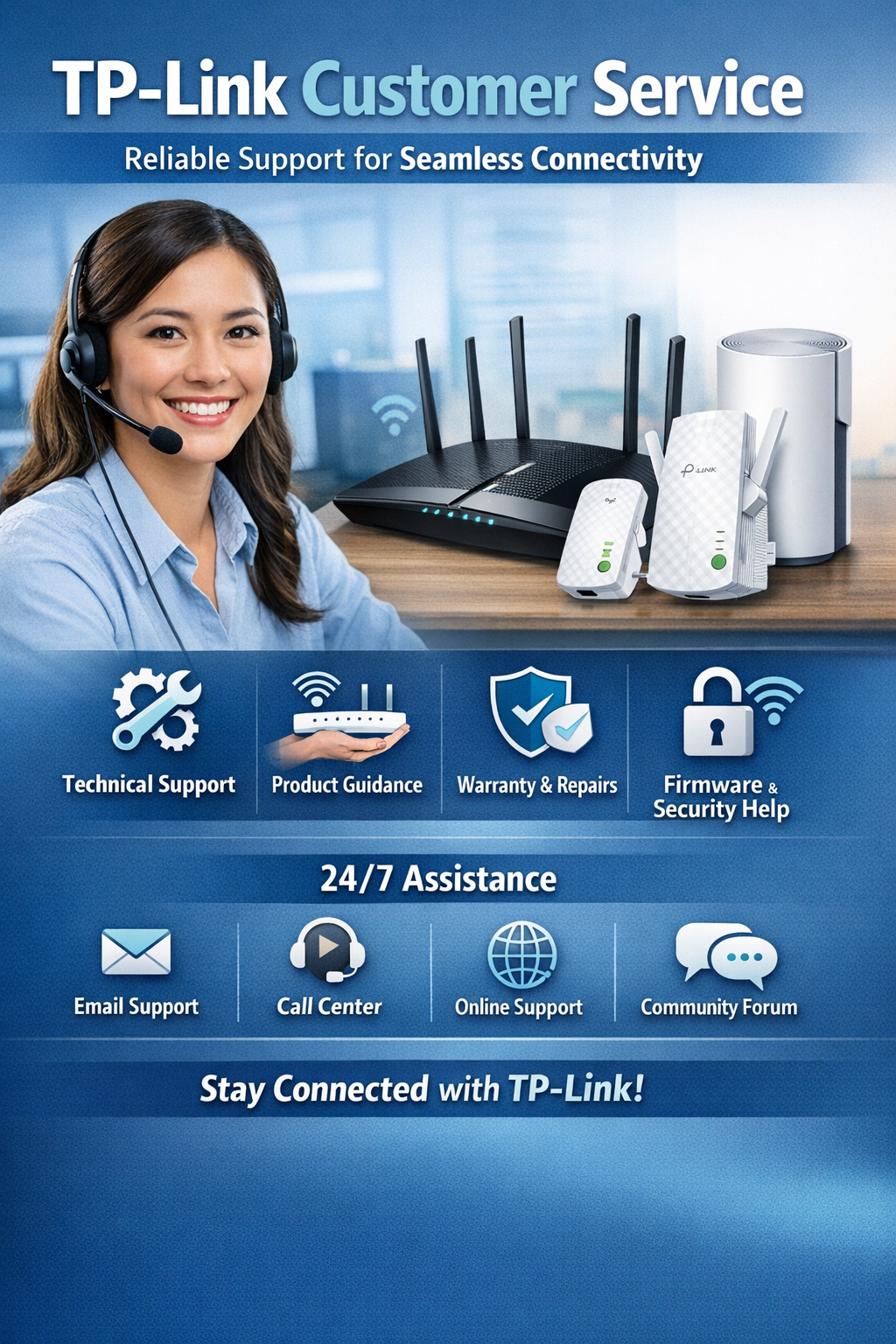
In today’s digital world, a strong and uninterrupted internet connection is essential for everything from online meetings to streaming and smart home devices. However, many users still face issues like weak WiFi signals, buffering, and dead zones in certain areas of their home or office. The TP-Link WiFi extender setup offers a simple and effective solution to these problems by expanding your existing wireless network and improving coverage in hard-to-reach areas.
A WiFi extender works by capturing the signal from your main router and rebroadcasting it to extend coverage further. Devices from TP-Link are widely trusted because they combine reliable performance with an easy setup process. Whether you are a beginner or an advanced user, setting up a TP-Link extender does not require technical expertise and can be completed in just a few minutes using different available methods.
The most common method for TP-Link WiFi extender setup is the WPS method. To begin, plug in the extender near your main router and wait until the power light becomes stable. Press the WPS button on your router first, followed by the WPS button on the extender. Once the connection is established, you can move the extender to a location where the WiFi signal is weak. This method is fast, simple, and does not require entering passwords manually.
Another widely used method is the web-based setup. In this process, you connect your device to the default network of the extender and open a setup page through a web browser. From there, you can select your home WiFi network, enter the password, and configure the extended network settings. This method is especially useful for users who want more control over their network configuration and prefer manual setup over automatic pairing.
In addition to these methods, TP-Link also offers the Tether app, which makes the setup process even more convenient. By installing the app on a smartphone, users can follow step-by-step instructions to complete the setup, manage connected devices, and monitor network performance in real time. This mobile-based approach is ideal for users who want quick access and easy control of their network settings.
After completing the setup, placement of the extender plays a crucial role in performance. It should be positioned halfway between the router and the area with weak signal coverage. Proper placement ensures that the extender receives a strong signal and effectively rebroadcasts it, providing seamless connectivity across the entire space.
In conclusion, TP-Link WiFi extender setup is a practical and efficient way to eliminate WiFi dead zones and improve overall internet performance. With multiple setup options like WPS, web browser configuration, and mobile app control, users can easily enhance their network coverage and enjoy stable, high-speed internet in every corner of their home or office.

 English
 Arabic
 French
 Spanish
 Portuguese
 Turkish
 Dutch
Dutch
 Italiano
 Russian
 Romaian
 Portuguese (Brazil)
 Greek
Greek