


How to Add Multiple Cameras to One Blink System
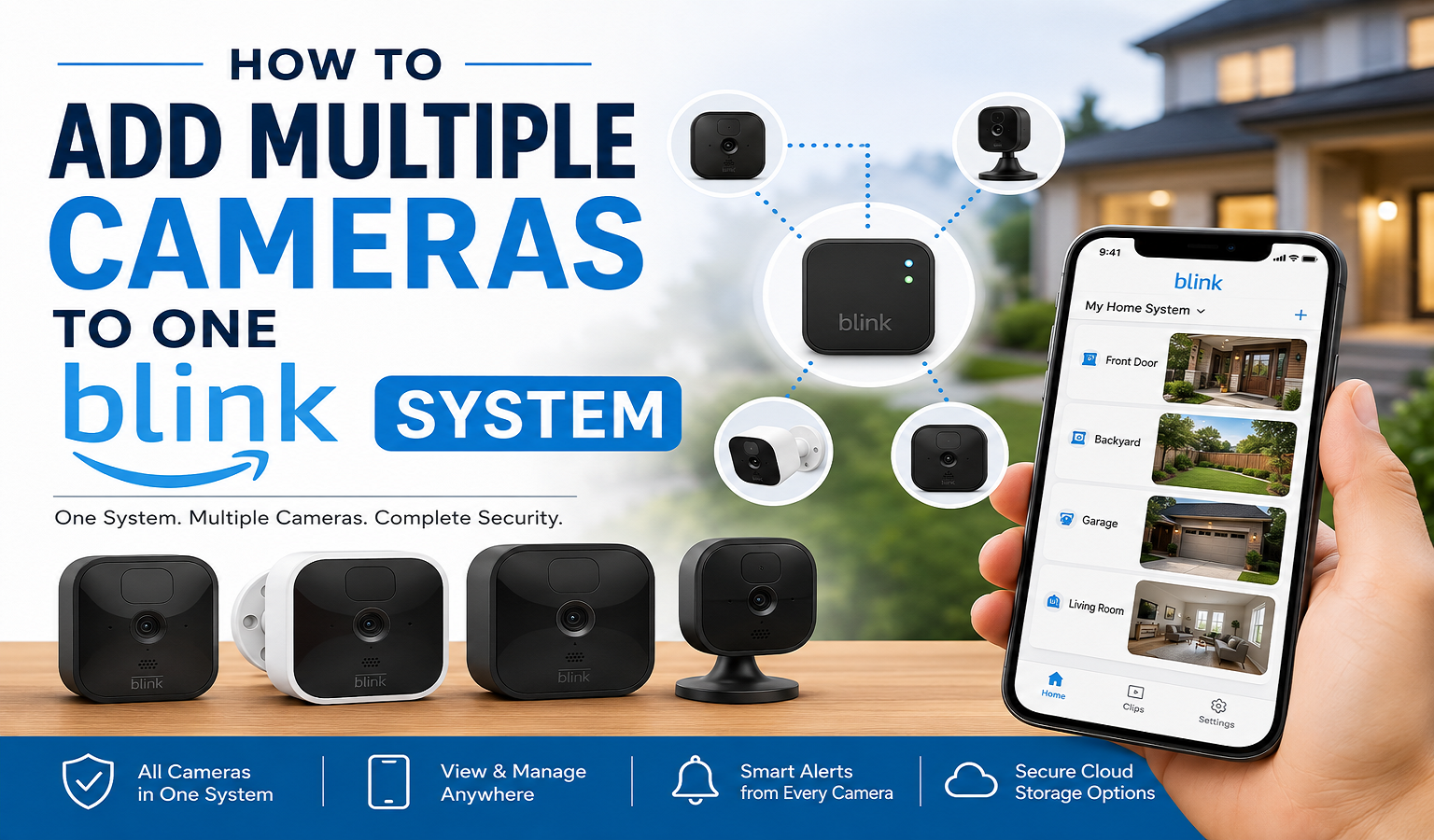
If you want to improve your home security, learning how to add multiple cameras to one Blink system is a smart move. Whether you want to monitor your front door, backyard, garage, or indoor spaces, Blink allows users to connect several cameras to a single account for seamless monitoring.
The good news? Setting up multiple Blink cameras is simple and takes only a few minutes through the Blink app. In this guide, we’ll walk you through everything you need to know.
Why Add Multiple Cameras to One Blink System?
Adding more than one camera to your Blink setup gives you complete coverage of your property. Instead of checking different devices separately, you can monitor all locations from one dashboard.
Benefits include:
- Better home security coverage
- Monitoring indoor and outdoor areas simultaneously
- Easier management through one Blink account
- Real-time motion alerts from different locations
- Convenience of controlling all cameras in one place
If you own multiple Blink devices, organizing them under one system makes security management much easier.
Things You Need Before You Start
Before you add multiple cameras to one Blink system, make sure you have:
- A Blink account logged into the Blink app
- A stable Wi-Fi connection
- A working Sync Module (for supported Blink cameras)
- Fresh batteries installed in your Blink cameras
- The latest version of the Blink mobile app
Having these essentials ready ensures a smooth setup process.
Step-by-Step Guide to Add Multiple Cameras to One Blink System
Follow these simple instructions to connect more Blink cameras to your existing system.
Step 1: Open the Blink App
Launch the Blink app on your smartphone or tablet. Make sure you’re signed into the same account connected to your existing Blink system.
Step 2: Tap the “+” Icon
Look for the plus (+) icon usually located at the top-right corner of the app screen. Tap it to add a new device.
This option allows you to connect additional cameras or devices to your account.
Step 3: Scan the QR Code
Choose the Blink camera model you want to add. Now locate the QR code on the back of the camera or inside the battery compartment.
Scan the code using your phone camera.
If the QR code doesn’t work, you can manually enter the serial number.
Step 4: Select an Existing Blink System
After scanning, the Blink app will ask where you want to place the camera.
Choose your existing Blink system instead of creating a new one. This is an important step when trying to add multiple cameras to one Blink system.
Step 5: Connect to Wi-Fi
Follow the on-screen instructions to connect the camera to your Wi-Fi network.
Wait a few moments while the device syncs with the Blink app.
Step 6: Name Your Camera
Once connected, give your camera a recognizable name such as:
- Front Door
- Backyard
- Living Room
- Garage
- Office
This makes it easier to identify camera feeds later.
Step 7: Test the Camera
After setup, test the camera by viewing the live feed and triggering motion detection.
Make sure alerts and recordings are functioning properly.
That’s it! You have successfully added another Blink camera.
How Many Cameras Can You Add to One Blink System?
One of the best things about Blink is scalability. A Blink system can support multiple cameras depending on the setup and Sync Module.
This means you can secure different areas of your home without needing separate accounts.
However, performance may vary depending on internet strength and device compatibility.
Common Problems When Adding Multiple Blink Cameras
Sometimes users face setup issues. Here are common problems and quick fixes.
Camera Not Connecting
Solution:
Restart your router and move the camera closer to the Wi-Fi signal.
QR Code Not Scanning
Solution:
Clean the camera label or manually enter the serial number.
Sync Module Not Detecting Camera
Solution:
Reset the Sync Module and ensure it’s online.
Blink App Freezing
Solution:
Update or reinstall the Blink app.
Most setup issues are easy to fix with basic troubleshooting.
Tips for Managing Multiple Blink Cameras
Once you add multiple cameras to one Blink system, organizing them properly becomes important.
Here are some helpful tips:
Group Cameras by Location
Keep indoor and outdoor cameras organized.
Use Clear Camera Names
Avoid generic names like “Camera 1.”
Customize Motion Settings
Adjust sensitivity based on placement.
Check Battery Levels Regularly
Multiple cameras mean more maintenance.
Update Firmware
Keep your Blink devices updated for better performance and security.
Conclusion
Learning how to add multiple cameras to one Blink system is an easy way to strengthen your home security. The Blink app makes setup straightforward, allowing you to manage all cameras from one place.
By following the steps above, you can quickly connect additional cameras and monitor every important area of your property without hassle.
Whether you’re securing a small apartment or a large home, adding multiple Blink cameras helps create a smarter and safer security system.
FAQs
Can I add more than one camera to a Blink system?
Yes, Blink allows users to add multiple cameras to one system and manage them through the Blink app.
Do I need another Blink account for additional cameras?
No, you can connect multiple cameras using the same Blink account.
Why is my Blink camera not adding to the system?
This may happen due to poor Wi-Fi, Sync Module issues, or outdated app software.
Can indoor and outdoor Blink cameras work together?
Yes, you can add both indoor and outdoor Blink cameras to the same Blink system.
Do I need a Sync Module for every camera?
No, multiple Blink cameras can often work with one compatible Sync Module.
Also Read :
How to Connect Blink Camera to Apple Home Easily
Why Your Blink Camera Won’t Connect to WiFi (And How to Fix It)
Blink Cloud Storage Guide: How to Access Your Clips Anytime

 English
 Arabic
 French
 Spanish
 Portuguese
 Deutsch
 Turkish
 Dutch
Dutch
 Italiano
 Russian
 Romaian
 Greek
Greek